Introduction to AIpai
AIpai, the world's latest AI Agent video creation platform, boasts the world's latest dialogue/image/video models, enabling one-click, one-stop generation from idea to video! It is committed to providing one-stop services and empowerment such as "creation tools + content sharing" for AI video creators!
Agent Workflow
AIpai Agent Workflow: Users can automatically parse and generate video outlines, characters, scenes, and storyboards by inputting text/images/audio/video through dialogue and discussion with AI, then perform batch image/video generation, lip-syncing for voiceovers, add subtitles for narration, and background music. Finally, all storyboard videos are edited and combined into one video! The entire process is carried out on the same page, a one-stop creative workflow!
1. Agent Getting Started Guide
In Agent mode, treat AIpai as your creative partner, communicate and discuss together, and jointly produce videos.
1.1Start Agent
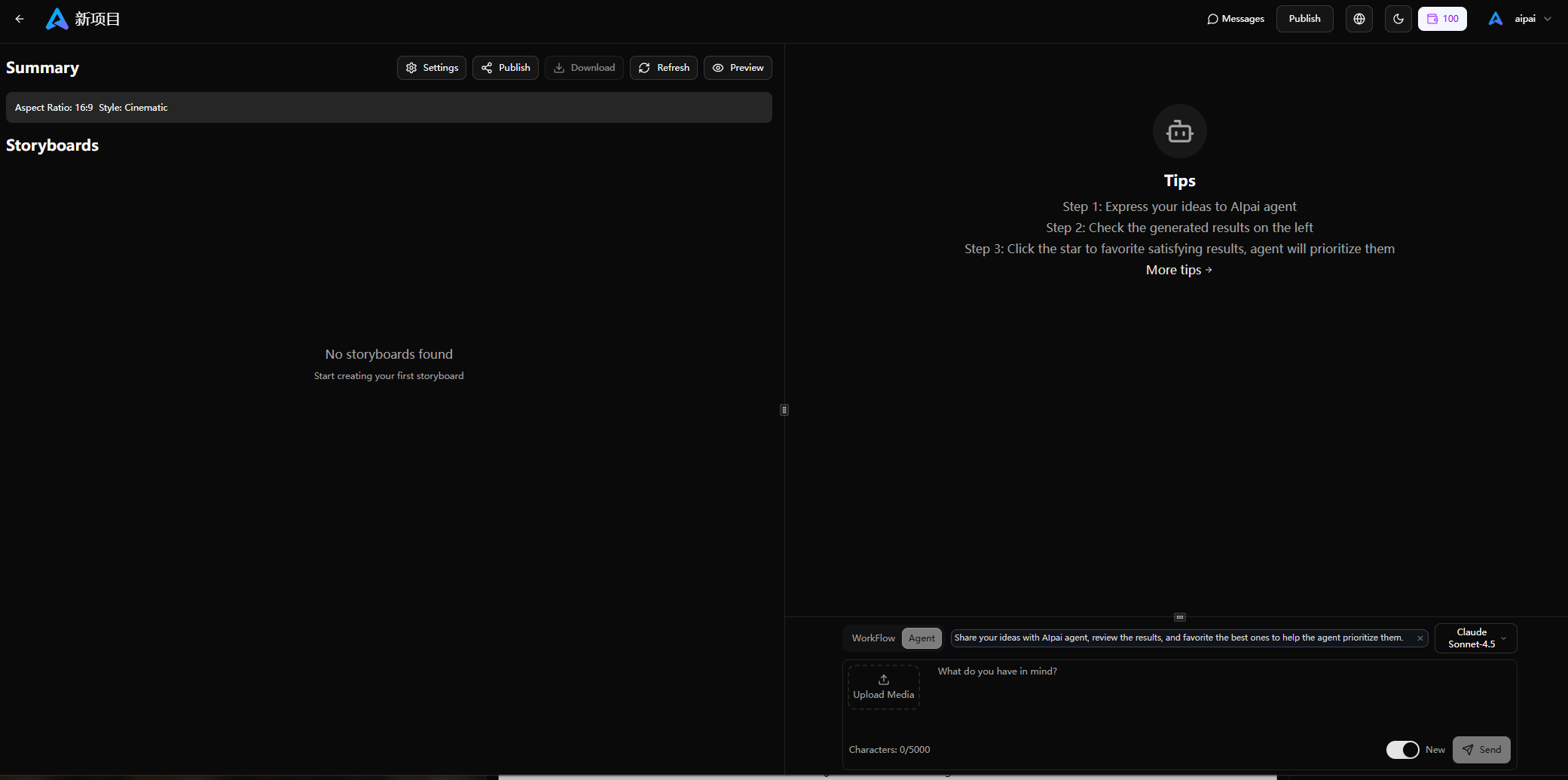
On the home page input box, enter your ideas, click "Generate" or "Create New Project", and then enter the Agent page.
In the upper left corner of the Agent page, click "Settings" to set the project video name, aspect ratio, and content style.
Select the conversation model in the input box at the bottom right corner of the Agent page
Claude Sonnet 4.5 AI can think and summarize, consumes a lot of credits, and is suitable for multiple conversations to generate content;
Gemini 3 Flash can think and summarize, create step by step, consume an appropriate amount of points, and is suitable for general production;
Grok 4 simply understands and thinks, consumes fewer credits, and is suitable for one-click direct image generation;
Note: On mobile devices, it is displayed as: Storyboard List and Generation Panel
1.2 How to Get Started
Input a sentence: Imagine AIpai as a creative partner of yours, starting from a preliminary idea.
For example: I want to create a short video related to Shan Hai Jing, about 1 minute long. Or there could be a clear object of imitation: I want to create a short video similar to The Matrix. AIpai will help you refine your ideas and gradually guide you through the entire process of creating an AI video.
Of course, if you have absolutely no ideas at all, you can also tell AIpai: "I have no ideas, what do you think is fun to do?" But such an approach may require more rounds of conversation to find the direction of the video you want to make.
Input Script: Input a script within 5000 words, such as the first episode of a script
1.3 Conversation Skills
After each step is completed, AIpai will ask for your opinion. If you have any dissatisfaction, simply describe your opinion directly to AIpai.
For example:
"I don't think this story is exciting enough. I hope there can be more conflicts."
"I think this leading actor should be stronger"
"There's too much content in Storyboard 1 now. Can it be split up?"
"The image generated by Storyboard 1 is incorrect; the overall feeling should be blue."
"In the video of shot 5, the character should be walking to the left of the frame, not the right."
"This voiceover sounds too young; I need one with more age."
The more accurate your description is, the more helpful it will be for AIpai to understand your opinion.
1.4 Inspection Results
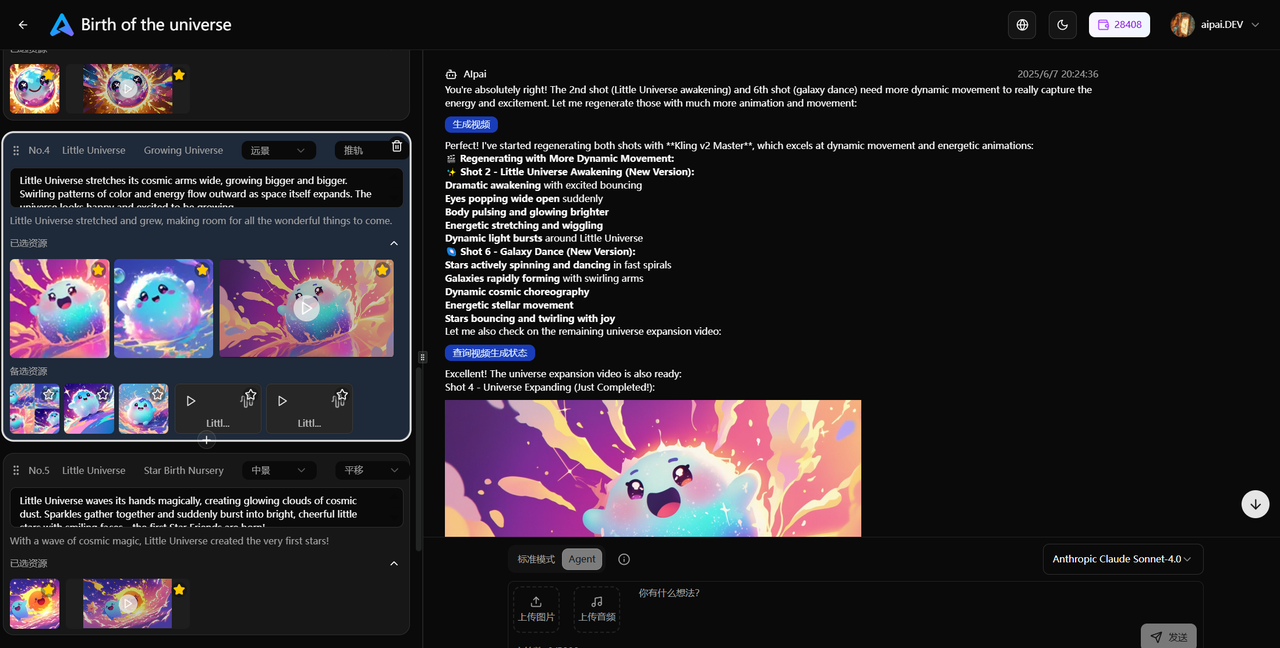
The Agent Creation Page is divided into: the left-side generated results display area and the right-side Agent communication area.
On the mobile device, it is displayed as: shot list and generation panel.
- The result area generated on the left: includes project overview, role diagram, storyboard details, as well as images, videos, and audios, which will be displayed on the left. You can check if you are satisfied and try to make modifications based on your own understanding of the video.
——Right Agent Communication Area: Propose ideas and suggestions to AIpai, and execute and modify the video creation process.
On the computer, you can adjust the size of the two areas by dragging the middle separator with the mouse.
1.5 SelectionCreatives
When you are satisfied with the generated results, you can mark the creatives you are satisfied with by clicking on 🌟. The marked creatives will be preferentially used by AIpai Agent in subsequent operations. If you do not choose or forget to do so, AIpai will choose for you.
Role diagrams, storyboards, videos, and voiceovers can all be marked by clicking on 🌟.
1.6. Creative Process
For reference, the creative process of AIpai is as follows:
For example: topic creation - project overview - text storyboard - character scenes - storyboard images - video generation - voiceover selection - background music - video synthesis.
However, the entire process is not fixed, and AIpai will advance project production based on your decisions or operating habits.
2. Agent Usage Recommendations
2.1. Model Selection
Method 1: By inputting text, let AIpai recommend a model, or you can specify to use a certain model, for example:
"Recommend image/video models suitable for the project"
"Generate characters using Midjourney"
"Use Kling 2.6 to generate a video"
"Generate videos using Sora2"
Method 2: In standard mode, manually generate and modify images/videos.
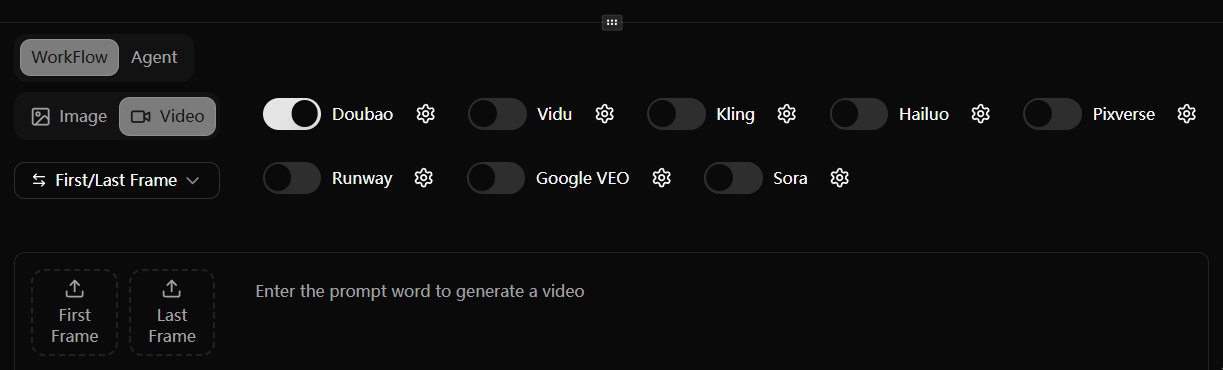
Image models: Latest versions of Midjourney, Flux, Doubao, Gemini (Nano Banana), etc.
Video models: Latest versions of Doubao, Kling, Hailuo, Vidu, PixVerse, Runway, Veo, Sora, etc.
Some models support first and last frame, multi-parameter generation

2.2 Consistency
If there are differences in the character image across different storyboard frames, please enter text:
"Re-generate the image for Storyboard 3, ensuring it is consistent with the character."
"Ensure that the characters in Storyboard 6 are consistent with those in Storyboard 5"
You can also upload various types of images (characters, scenes, etc.) and tell AIpai to use the uploaded images as characters/scenes in the video.
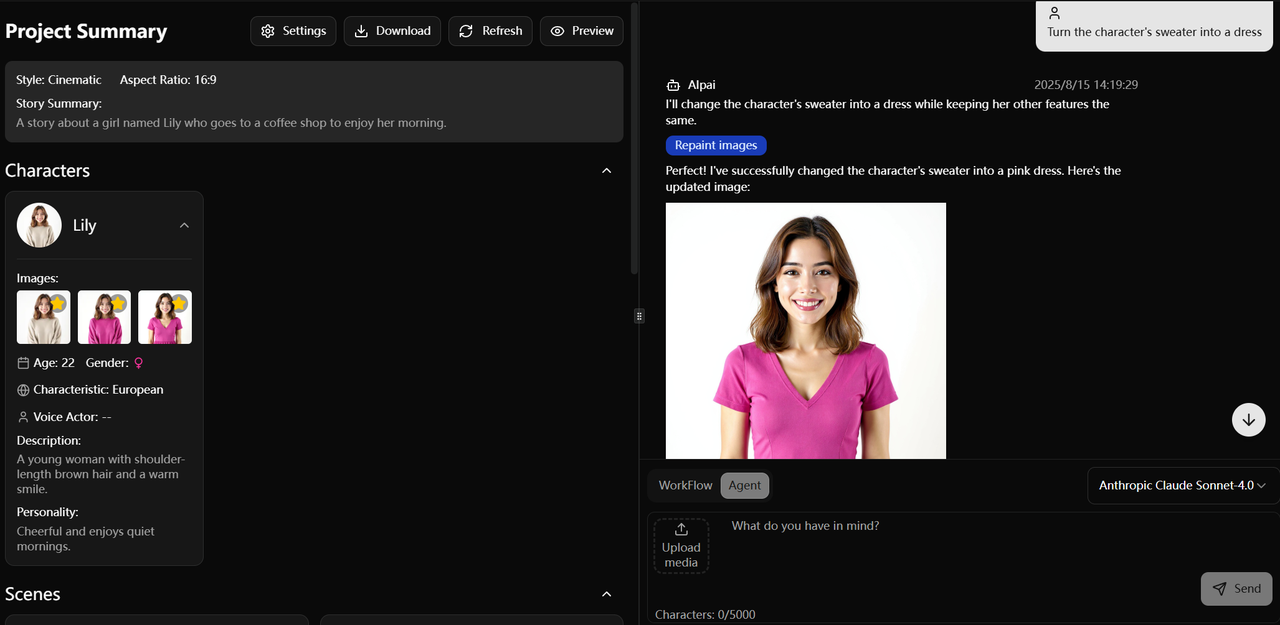
2.3 Character Outfit Change
Change the character's clothing or color, then enter a prompt, example:
"Keep the character's face unchanged and change the clothing color to pink"
"Keep the character's face unchanged and change the cheongsam into a dress"
"Keep the character's face unchanged, change the hairstyle and clothing"
2.4 Video/Audio Analysis
Upload videos or audio through the input box on the Agent page, and AIpai will automatically analyze their duration, content style, rhythm, content, etc. It can be used to extract audio for MV production, perform operations such as video imitation based on the video, and engage in creative activities through conversations with AIpai. You can also choose AIpai's "One-Click" feature
2.5 Dialogue Prompts
The dialogue prompt for AI should be detailed and precise, for example, "The protagonist Lin Dong in shots 2 and 6 does not match the clothing on the character card; please regenerate the image."
Each conversation consumes points, and the longer the context, the more points are consumed.
If multiple modifications are made to a certain image/video through dialogue without specifying which image/video to base the modification on each time, it will cause AI confusion, making the generated results increasingly chaotic, consuming points, and in this case, the standard model can be switched to for manual modification.
Frequently Asked Questions
1. Usage Tips
Page Color: The "Sun/Moon" icon in the top right corner can switch between light and dark background colors of the page.
Space adjustment: In the project, the "small button" above the input box and in the middle of the entire page, as well as mouse dragging, can adjust the space size of both parties.
Project Settings: After creating a project, remember to click "Settings" in the upper left corner of the project to set information such as the overall aspect ratio and content style of the project video.
Project Consistency: For AI short drama production, a project can be created for each episode. After having AI analyze the script for each project, instead of generating character images, you can directly upload them to maintain consistency of characters across episodes.
Manual Generation: When modifying a certain image/video in a storyboard, if you use dialogue modification multiple times, it is difficult to be satisfied. It is recommended to switch to "Standard Mode" and manually modify the image/video.
Stop Task: Clicking the "Send" button in the input box will deduct points, and the task will automatically enter the background to start running. If the "Stop" button is clicked not immediately, the task will still be automatically generated and consume points.
Check Images : Before generating a video from storyboards, be sure to check whether the images and prompts for each storyboard meet the requirements.
Conversation Credits: Each conversation consumes credits, so try to minimize unnecessary conversations; manually select models for image/video modification and generation; use low-cost conversation models.
Model Functions: Different models have different functions, such as automatic voiceover, first and last frames, multi-parameter generation, etc., and are good at application.
Multi-person Collaboration: Multiple users on multiple devices can log in to the same account, view, check, and modify others' projects in real time.
Model Image Generation: In the Agent project, image generation for characters, scenes, and storyboards should use the same model. If other models are used midway, it will result in significant differences in the consistency of the style of the generated images. For video generation, different models can be selected for testing and modification.
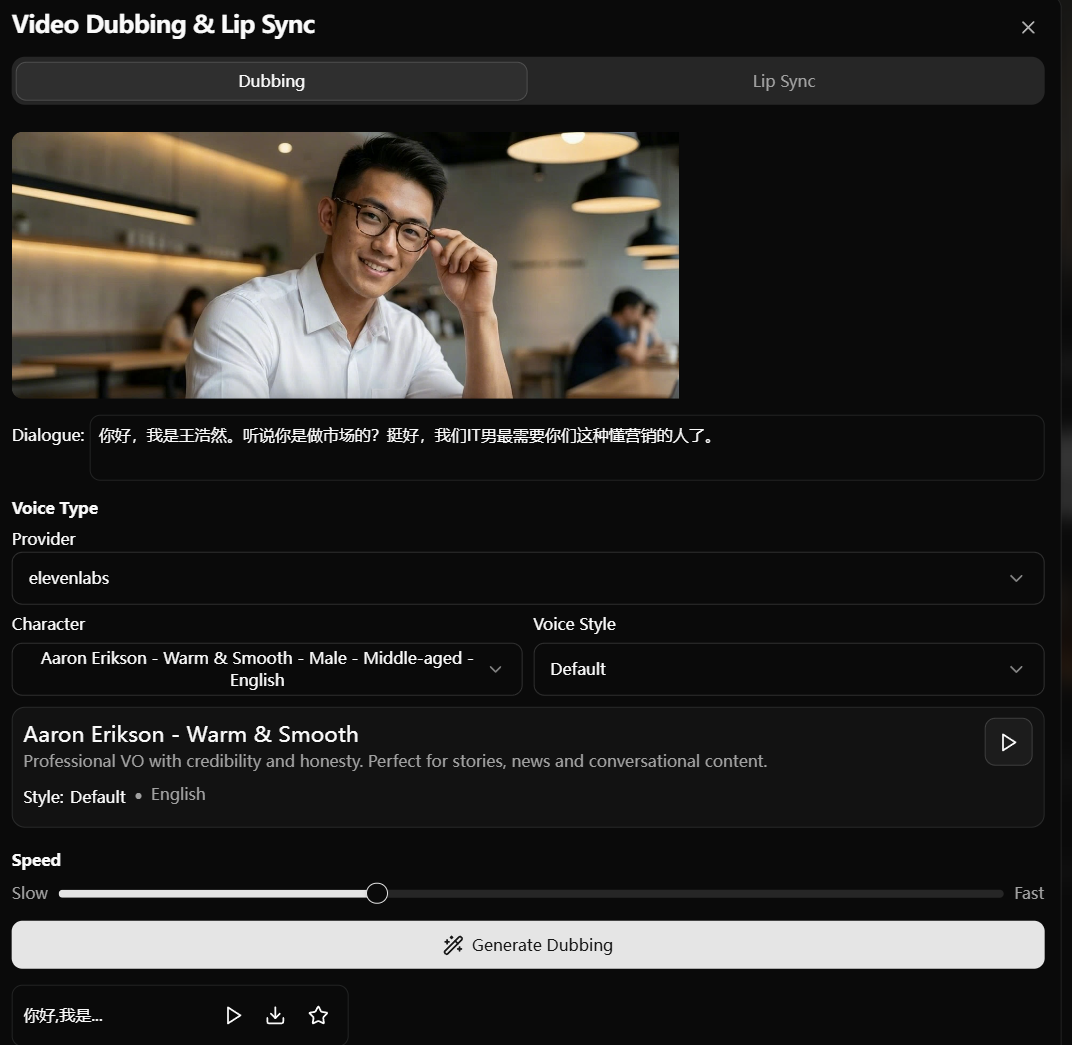
2. Lip-sync for voiceover
Voiceover: You can let AI recommend voiceovers that match the video style and character traits; you can also switch to "Standard Mode" and manually select a voiceover via the "Voiceover" button below the video.
Lip-syncing: For animation videos, lip-syncing is generally not required, and the character's mouth can be made to move in the prompt; for non-animation videos, lip-syncing can be selected after voiceover generation in "Standard Mode".
3. Model-related
Individual call: "My Project - Shot - Standard Mode", manually select different image/video models, multiple selections are available, and generation can be done simultaneously.
Agent Call: Through the input box prompt, such as "Generate an image/video using the XX model"
Model Pricing: On the "Pricing" page in the top-left corner of the website, you can view the pricing of different task models and the points they consume.
Model Version: Click the small button on the right side of the model name to select the model version, duration, ratio, etc.
Conversation Model: Switch conversation models in the upper right corner of the input box! Claude engages in multiple conversations, involves more thinking, and consumes more points; Gork involves less thinking and consumes fewer points!
4. Make the same style
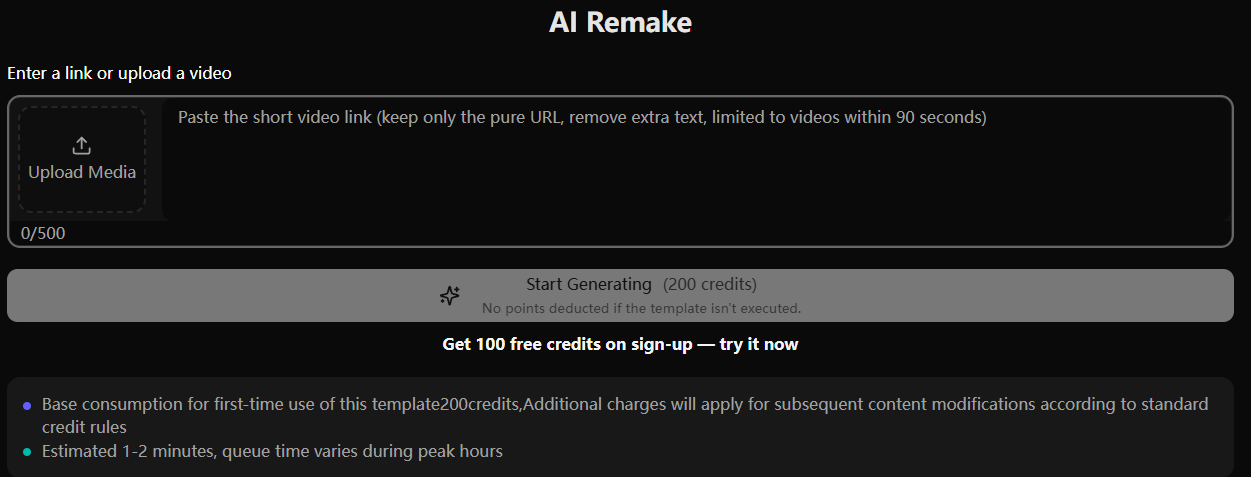
The "Make the Same" function in the top-left corner of the website allows you to share your Douyin/Tiktok video link, provide a brief description, and create with just one click;
Supports "uploading images + sharing links" and can directly replace video characters/scenes, etc. (e.g., suitable for videos with a single character).
Suitable for the production of short videos in the popular AI Orange Cat category, with a plot but not complex shots.
5. Points-related
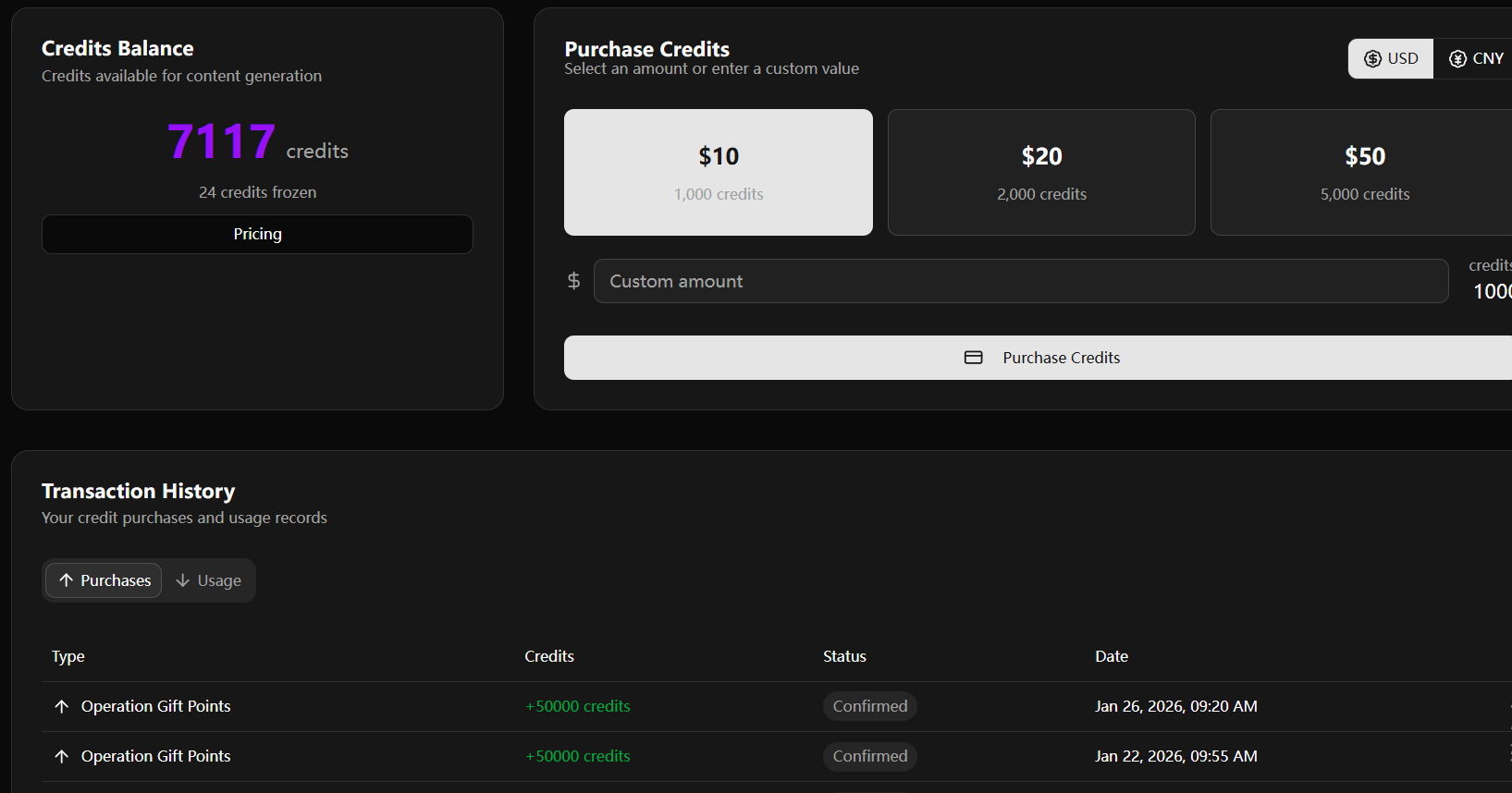
Paid Purchase: Buying a membership comes with bonus points, or you can purchase points of different amounts separately. Large offline purchases are eligible for discounts and can be invoiced.
Free Points: Participate in official activities, such as theme solicitation, joint promotion, etc. For details, please contact customer service.
Points Consumption: Points consumption varies for different multi-models and tasks. Please check the "Pricing" page in the top-left corner of the website, and the points consumption record is located below the subscription page.
6. Invoice Application
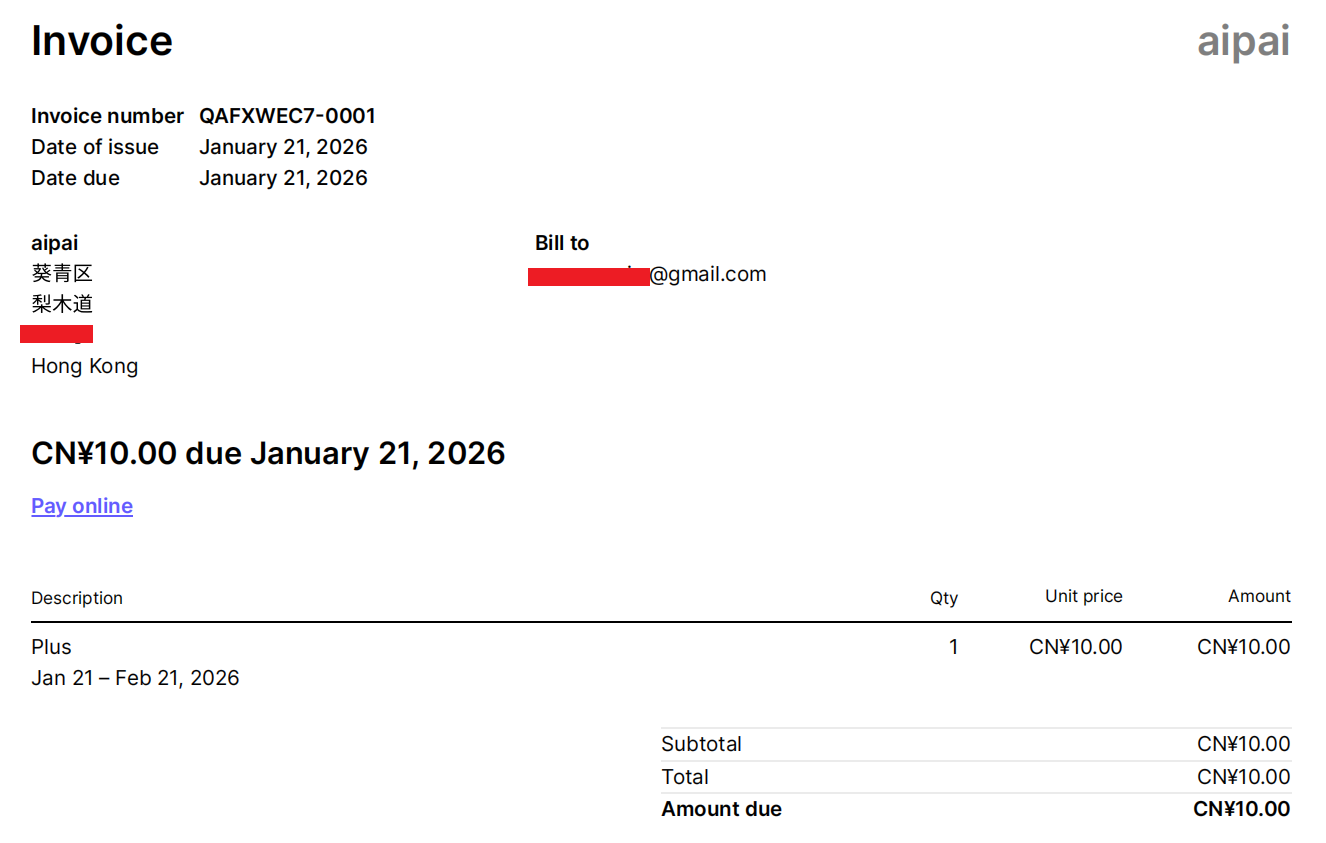
Currently, online membership recharge only supports issuing invoices and receipt vouchers.
7. Subscription-related
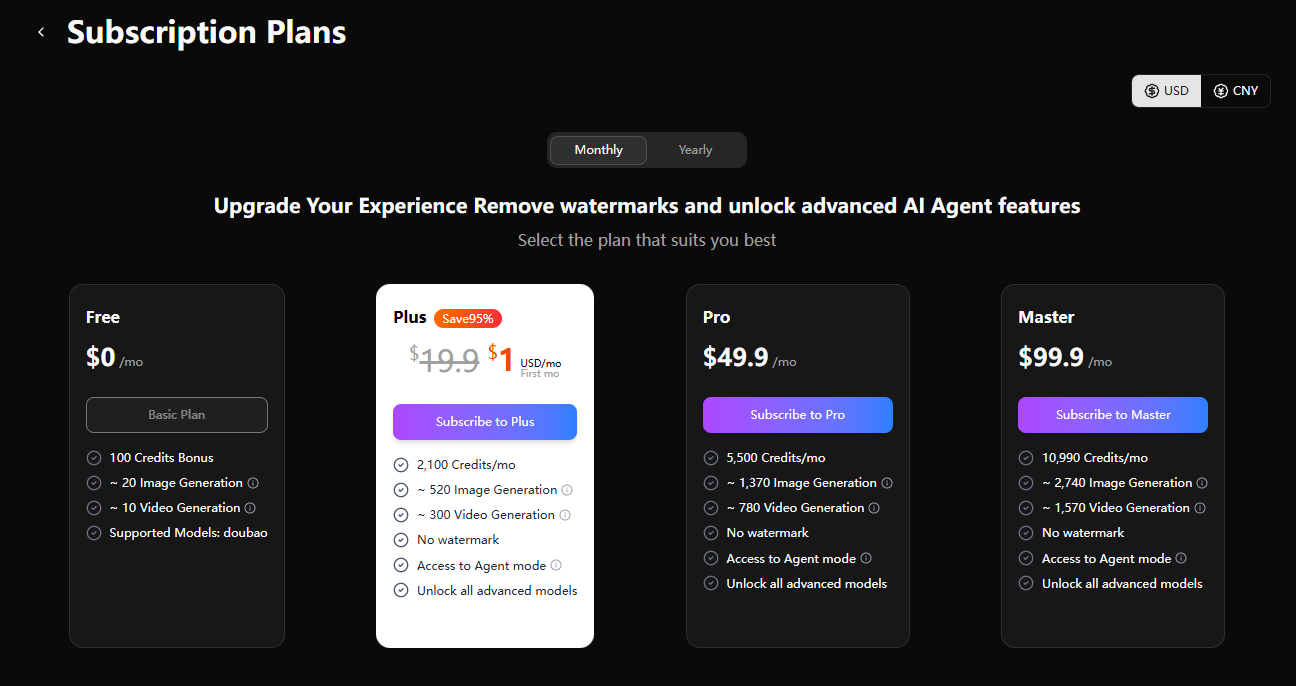
Member Purchase: Click on the "Points" number, enter the points subscription page, and select different packages to purchase
Automatic Deduction: If you choose to purchase a monthly package, such as "First Recharge", note that the fee will be automatically deducted at the original price the following month.
Cancel Subscription: Click the middle button of the subscribed package to perform "Cancel Subscription". The button will turn gray, and automatic deduction and point issuance will no longer occur starting from the next month. Deductions and points issued in the current month cannot be refunded.
Contact Customer Service
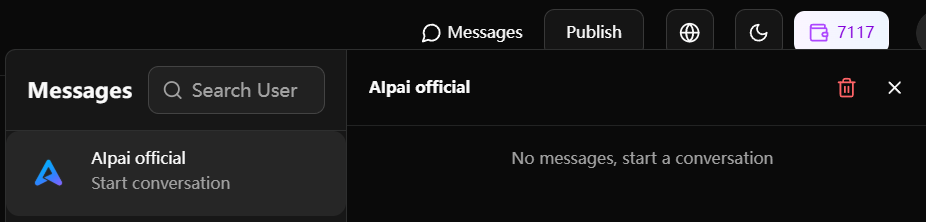
For any inquiries, such as product consultation, business cooperation, or issue feedback, please click the "Private Message" button at the top of the page to contact the official customer service "AIpai offical".